Results - Graph View Tab
The Graph View tab is used to compare the number of customers based on information such as the customers' current vehicles, the customers' proposed vehicles, or the maturity of the customers' current deals.

|
To access the Graph View tab, click the |
 (Graph View) icon on the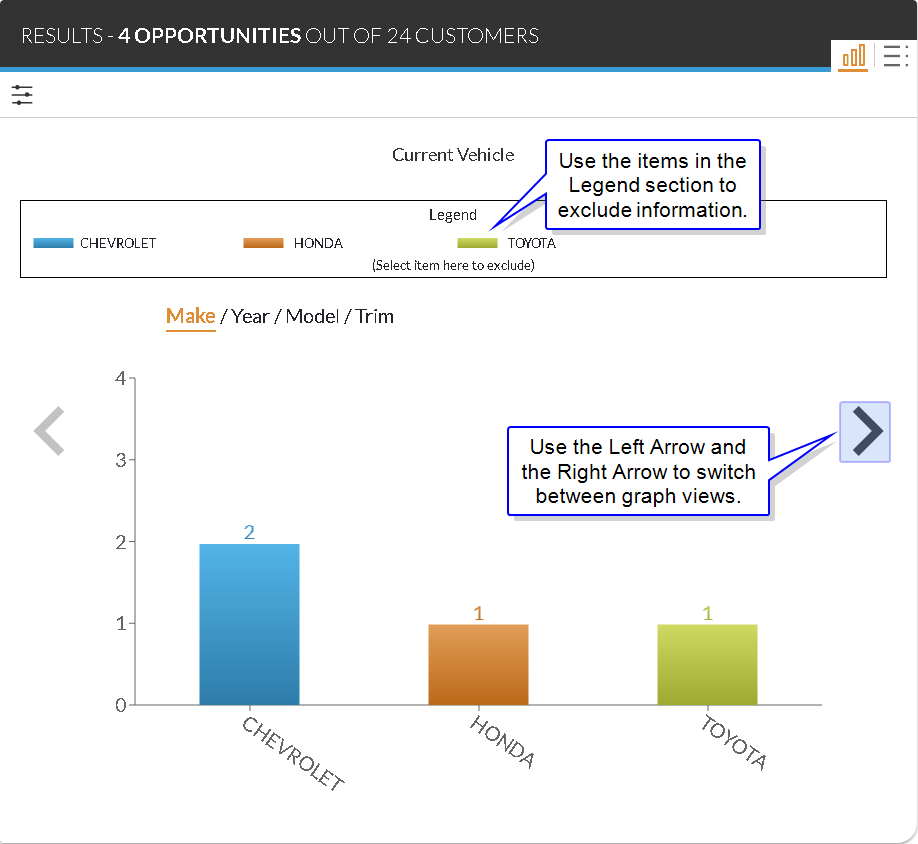
To change how customers are organized on the graph, select an option in the Report Results navigation trail at the top of the section. For example, to display customers based on the make of their current vehicle, select Make.
To view search results based on only the results in a specific column, click the corresponding column. The criteria in the Campaign Criteria panel is updated, and the graph displays the selected information. For example, to view results for only Honda vehicles, click the Honda column. Other vehicle makes are removed from the graph and other options, such as Year or Model, can be viewed for only Honda vehicles. To return to the original search results, click the  (Back) icon.
To access the List View tab directly from the Graph View tab, click a column to filter the search results based on the selected column. When the last option in the Search Results navigation trail is selected and a column is clicked, the criteria in the Campaign Criteria panel is updated, and the List View tab displays with customers matching the selected criteria.
To exclude a type of information from the graph, select the item in the Legend section. For example, to remove information about Toyota vehicles from the graph, click the item to the left of the Toyota label in the Legend section. The criteria in the Campaign Criteria panel is updated, and the graph displays without the selected information.
The following items are available on the Graph - Current Vehicle view or the Graph - Proposed Vehicle view of the Graph View tab. Click the Right Arrow or Left Arrow to switch between different graph views.
Make: Select this option to view results based on the make of the customer's current vehicle.
Year: Select this option to view results based on the year of the customer's current vehicle.
Model: Select this option to view results based on the model of the customer's current vehicle.
Trim: Select this option to view results based on the trim of the customer's current vehicle.
The following options are only available when viewing data in the Graph - Maturity view of the Results panel.
Year: Select this option to view results based on the year the customer's current deal matures.
Month: Select this option to view results based on the month that the customer's current deal matures.
Note - This option is accessed by clicking a year column when the Year option is selected.
# of Months: Select this option to view results based on the number of months since the customer's current deal matured.
Note - This option is accessed by clicking the Matured column when the Year option is selected.
Click here for a list of products that may be mentioned in this help file.